Short answerA niche, shown as a lane on some screens, groups the accounts that post one kind of clip to one landing link. It carries the posting rules for those accounts: daily cap per platform, posting windows and time zone, timing jitter, how long the same footage is blocked across accounts, the caption template and an optional first comment. Each account gets its own tracked version of the niche's link.
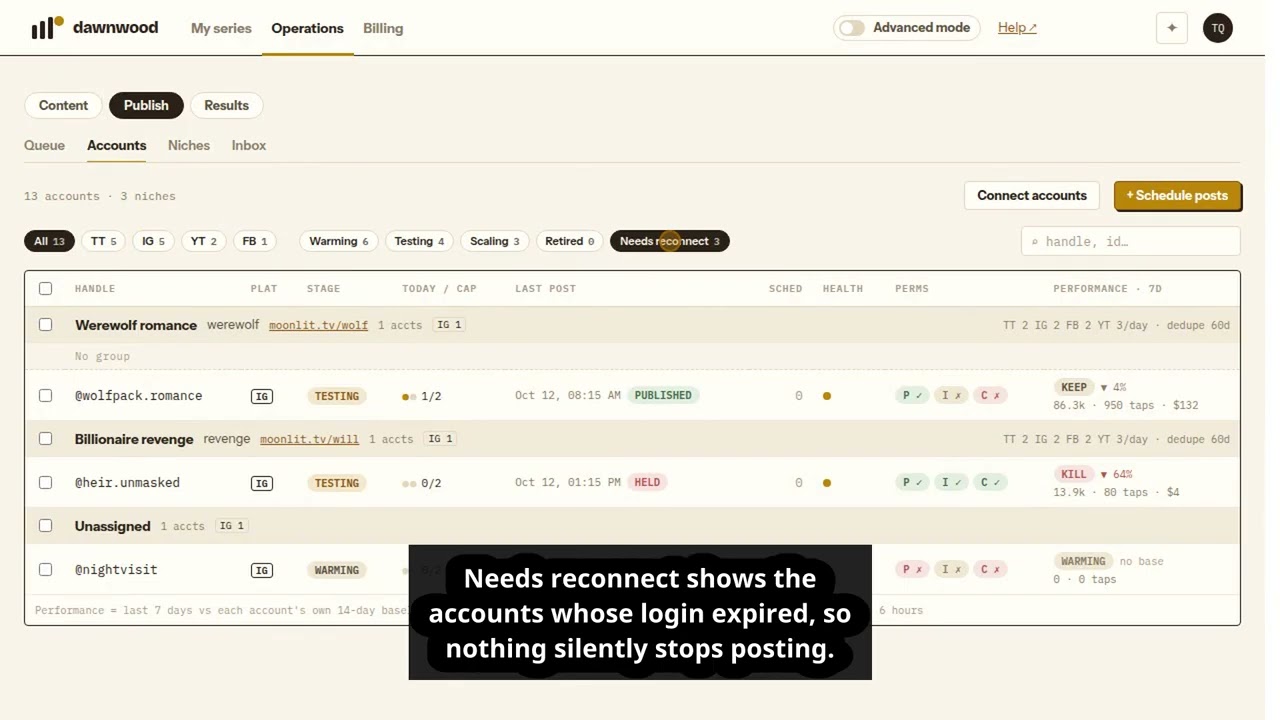
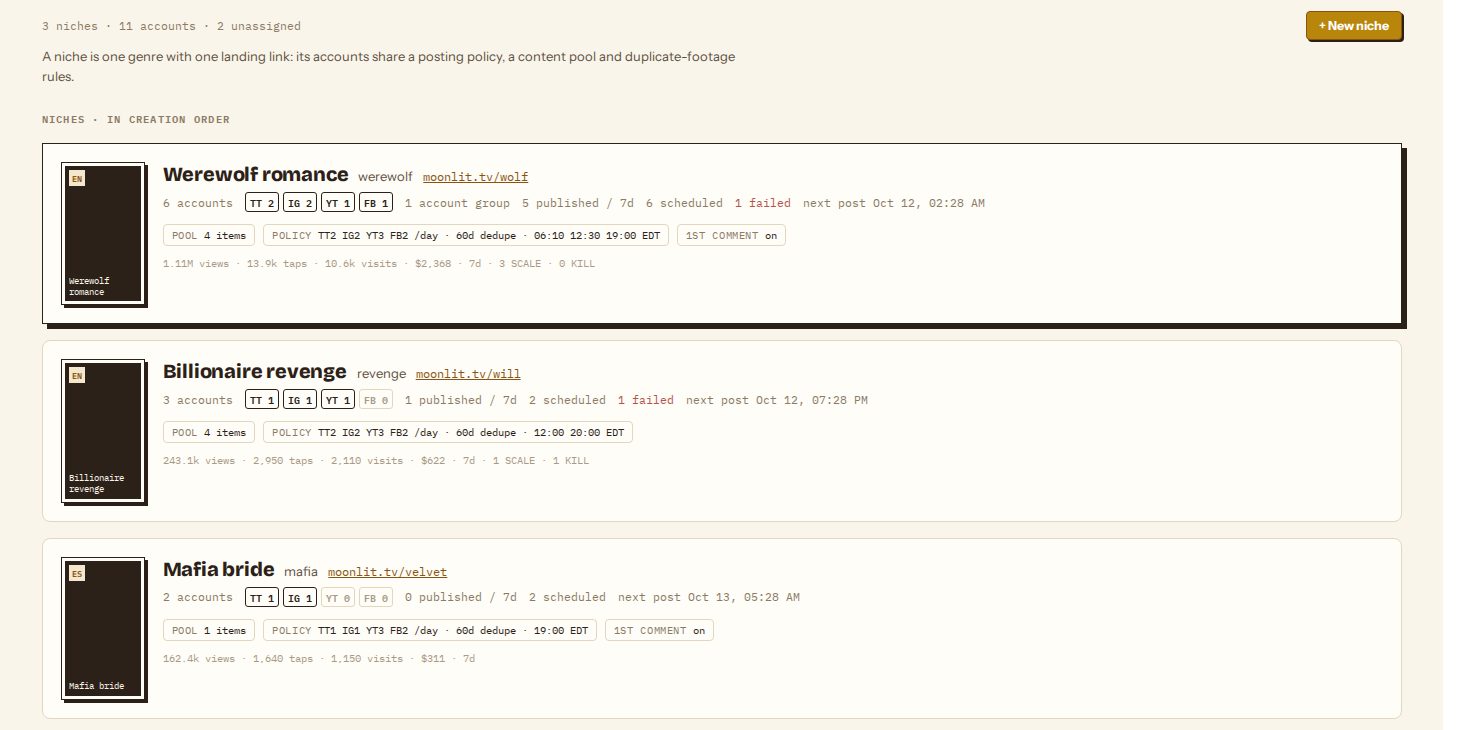
Why niches
Accounts that post the same kind of clip to the same audience should be judged against each other, and should not post the same footage at the same moment. A niche makes that explicit: "Werewolf romance" with six accounts across four platforms, all pointing at one landing page. Results compare each account with its own past and with the other accounts in its niche; see reading publishing results.
Create a niche
Operations › Publish › Niches → + New niche. Give it a name, a short niche label (for example werewolf), the landing link viewers should reach, a language, and optionally the series it promotes. The posting rules start from defaults and can be edited afterwards. Then assign accounts: tick them on the Accounts page and choose Assign niche…. An account belongs to one niche at a time.
The tracked link
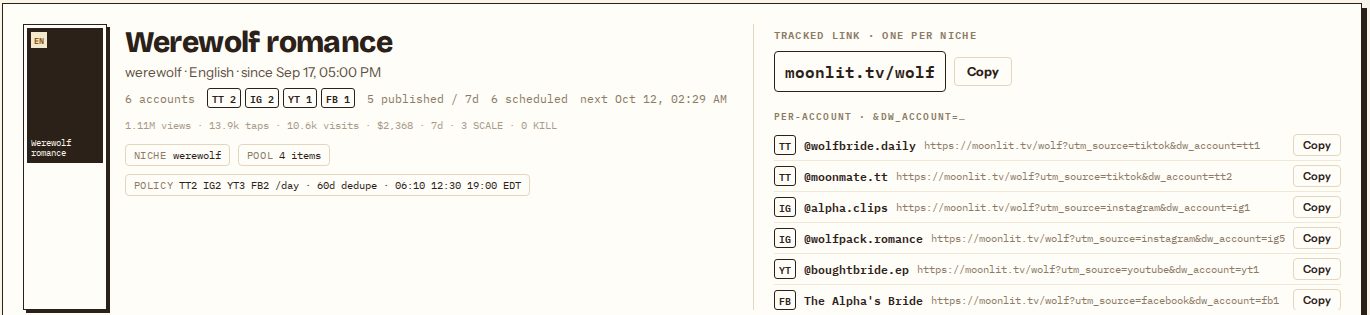
Every niche has one link. Each account gets its own tracked version of it (utm_source plus dw_account), and at send time each post adds its own dw_post and, for episodes, ep. In captions the {link} placeholder becomes a short link that counts every tap before it forwards. That is what lets Dawnwood tell which account and which post sent a visitor; see conversion tracking.
Posting rules
Open a niche and choose the Policy tab.
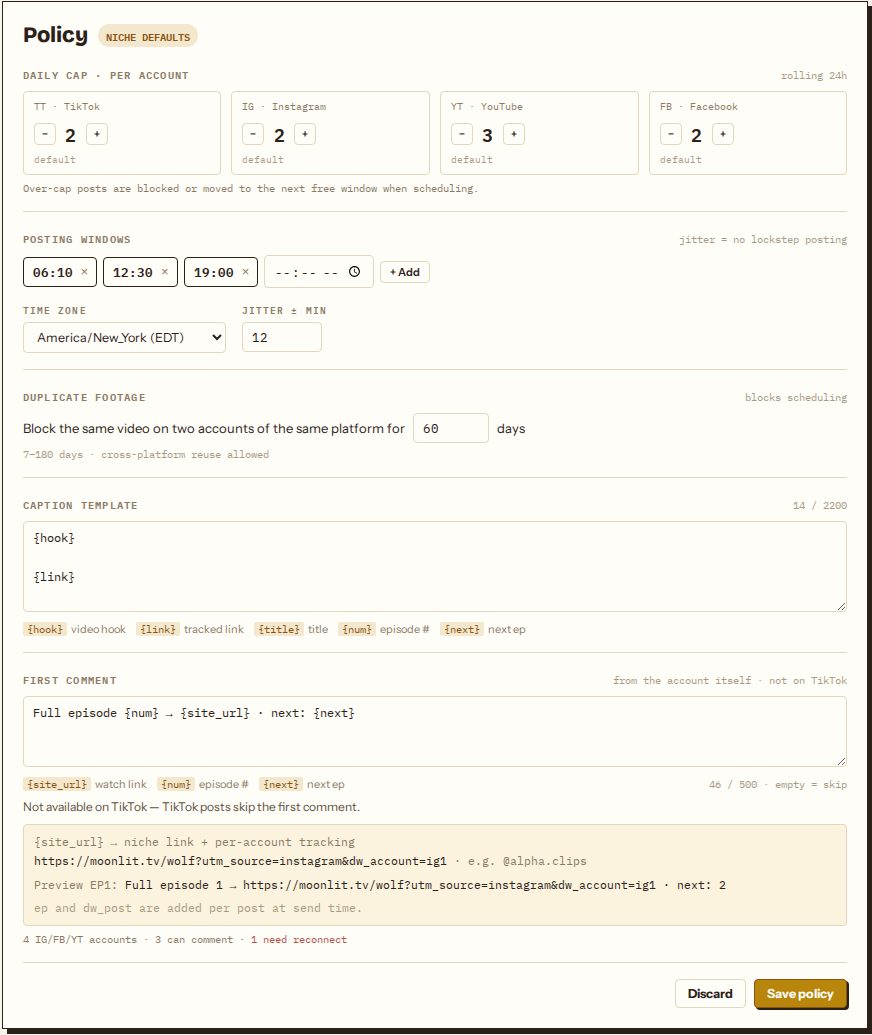
| Rule | Default | What it does |
|---|---|---|
| Daily cap · per account | TikTok 2, Instagram 2, Facebook 2, YouTube 3 | Most posts any one account makes in a rolling 24 hours (1 to 10). Posting more often than this tends to collapse an account's reach. When you schedule, an over-cap post is either blocked or moved to the next free window. |
| Posting windows | 06:10, 12:30, 19:00 | The times of day posts are placed at when you let the scheduler choose. Add or remove times. |
| Time zone | America/New_York | The zone the windows are read in. |
| Jitter ± min | 12 | Each post is shifted by a random few minutes so accounts in a niche don't post in lockstep (0 to 45). |
| Duplicate footage | 60 days | The same video can't go to two accounts on the same platform within this many days (7 to 180). Reusing a video on a different platform is allowed. The same video never posts twice on one account. |
| Caption template | {hook} then {link} | Placeholders: {hook} the video's hook, {link} the tracked short link, {title}, {num} episode number, {next} next episode. Up to 2,200 characters. |
| First comment | empty (off) | Posted from the account itself right after an Instagram, Facebook or YouTube post goes live, usually with the watch link. Placeholders {site_url}, {num}, {next}. TikTok has no comment API, so TikTok posts skip it. |
The preview under the first comment shows exactly what will post, and warns when some accounts in the niche are missing the comment permission. Save policy applies caps, windows, jitter, the duplicate-footage block and the first comment to posts scheduled from then on; posts already in the queue keep their time and first comment. The caption template is filled in at send time, so a template change also reaches queued posts that use it.
The niche page
Besides Policy, a niche has Overview (its 7-day funnel against its baseline and recent posts), Accounts and Content pool (the library videos assigned to it). Pause niche pauses every account in it at once, and + Schedule posts opens the scheduler with its accounts preselected.
Deleting a niche leaves its accounts unassigned and its videos in the library. A niche with posts still scheduled can't be deleted; cancel or let them run first.
Automatic posting
Each niche also shows an Autopilot card. Automatically refilling a niche's schedule from your Clips library is not open to customer workspaces yet; today you schedule posts yourself, a week or more at a time.
Still stuck? Email support@dawnwood.ai with your account email, the series, the episode and the segment or group — see what to include.