Short answerOperations › Results › Overview compares the last 7 days of each account with its own previous 14 days and with the other accounts in its niche. It marks each account Scale (doing at least 25% better, give it more), Kill (at least 50% worse, pause it), Check (posting but getting no views), Warming (fewer than 3 posts to compare against) or Keep. "7d · N posts" counts only the posts published in that window, not the account's lifetime totals.

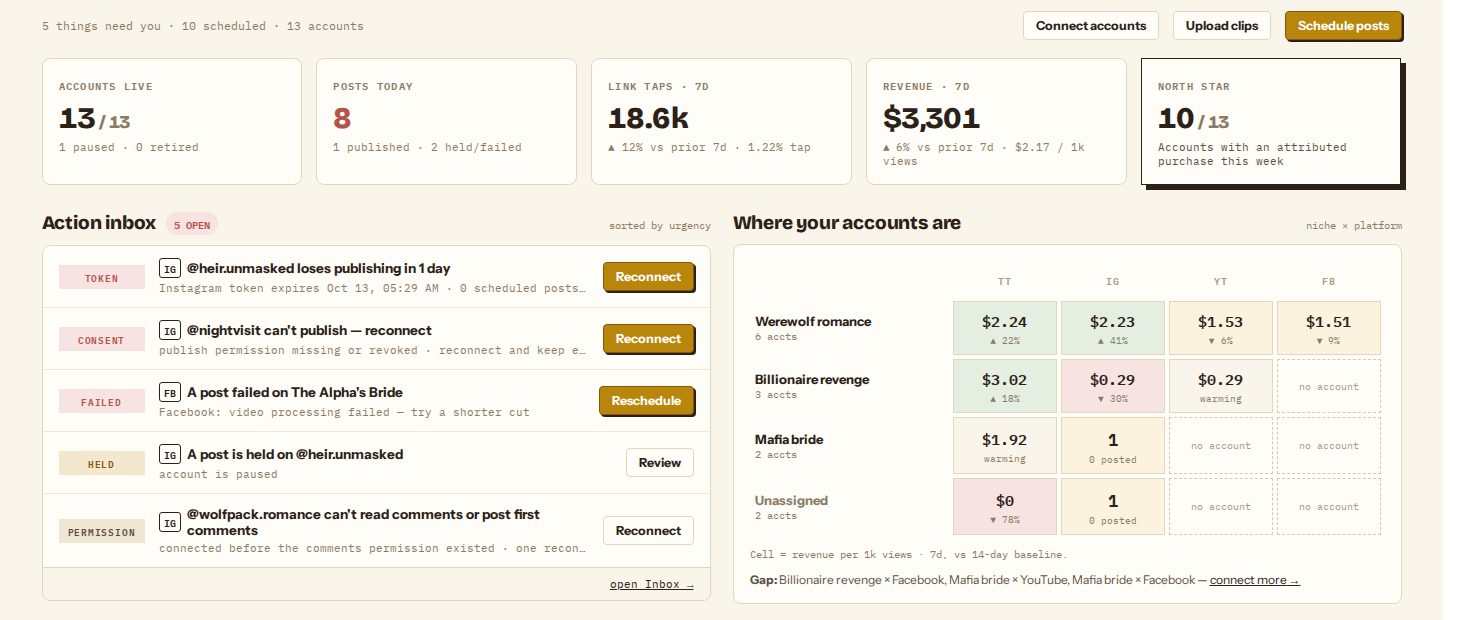
The numbers at the top
| Tile | What it counts |
|---|---|
| Accounts live | Connected accounts that aren't retired, with how many are paused |
| Posts today | Posts due today, with how many went out and how many are held or failed |
| Link taps · 7d | Taps on the tracked links in your captions over the last 7 days, against the 7 days before, and the tap rate per view |
| Revenue · 7d | Purchases attributed to your posts, once conversion tracking is connected, and revenue per 1,000 views |
| North star | How many accounts brought at least one attributed purchase this week, out of your live accounts |
Where your accounts are
The grid has one row per niche and one column per platform. Each cell shows how that niche does on that platform over the last 7 days against its previous 14: revenue per 1,000 views once purchases are coming in, otherwise link taps per 1,000 views. Before any views have been read, cells show the number of accounts and posts instead. Warming or no base means there isn't enough history to compare. A dashed no account cell is a gap: that niche has no account on that platform, and the line under the grid lists the gaps with a link to connect more.
Verdicts
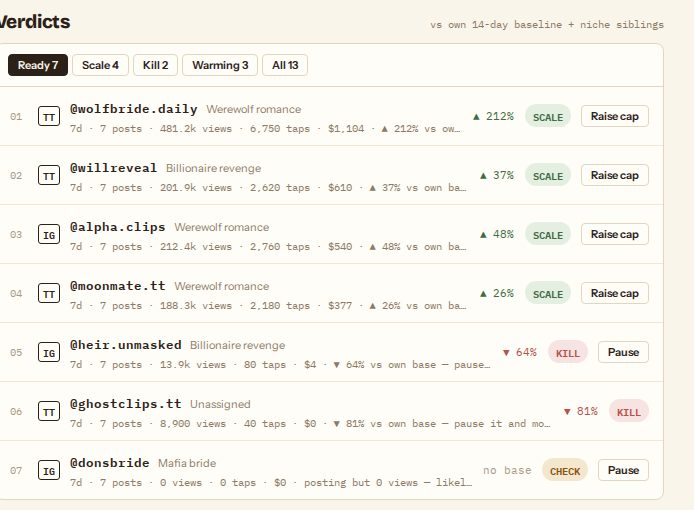
Every account gets one verdict. Each row reads like "7d · 7 posts · 481.2k views · 6,750 taps · $1,104 · ▲ 212% vs own base".
What is compared. Results use the best measure available: revenue if any purchases have been attributed, otherwise link taps, otherwise views. The account's output per post over the last 7 days is compared with its own output per post over the 14 days before that, and with the median of the other accounts in its niche (when the niche has at least three accounts posting).
Views are compared fairly. A post's views keep growing for a day or two, and one viral post can distort an average. So when views are the measure, each account is judged on the median views per post, using only posts at least 2 days old.
| Verdict | Rule | Suggested action |
|---|---|---|
| Scale | At least 25% above its own baseline, and not below its niche's median | Raise cap opens the niche's policy: post more often, or add another account to the niche |
| Kill | At least 50% below its own baseline, at least 3 posts in the window, and below its niche's median | Pause it and move its schedule to other accounts in the niche |
| Check | At least 2 posts in the window and every one at 0 views | Likely reach-limited by the platform: Pause for a day, then try again |
| Warming | Fewer than 3 posts in the 14-day baseline | Nothing yet; keep posting |
| Keep | Anything in between | Nothing to do |
The tabs above the list filter it: Ready shows only accounts with something to do (Scale, Kill, Check), the others show one verdict, and All shows every account.
"7d · N posts" is not the account's lifetime. The views, taps and revenue in a row add up only the posts published in the last 7 days. An account's profile on the platform shows totals over its whole life, including old posts, so it will usually be much higher. That's expected.
How fresh the numbers are
Views and likes are read from each platform every 6 hours, for posts from the last 30 days, using each account's own connection. Instagram views need the insights permission (the I capsule on the Accounts page); without it, Instagram posts show no views. Link taps and purchases arrive as they happen.
The Last 24 hours list under the verdicts shows what went out, what failed, and whether the first comment posted.
Episodes of your series
Operations › Results › By series shows the posts of episodes you published from Production › Episodes: views, views in the first 48 hours, likes and comments per post, with totals per series.
Still stuck? Email support@dawnwood.ai with your account email, the series, the episode and the segment or group — see what to include.