Short answerPut videos in Operations › Content › Library, by uploading vertical MP4 or MOV files (up to 1 GB each) or importing finished episodes from your series, and give each one a hook. Then Schedule posts walks through four steps: pick content, pick accounts, review the plan Dawnwood proposes within each niche's caps and duplicate rules, and confirm, including TikTok's consent. Scheduled posts appear on Operations › Publish › Queue, where you can open, cancel or reschedule them.

1. Put videos in the Library
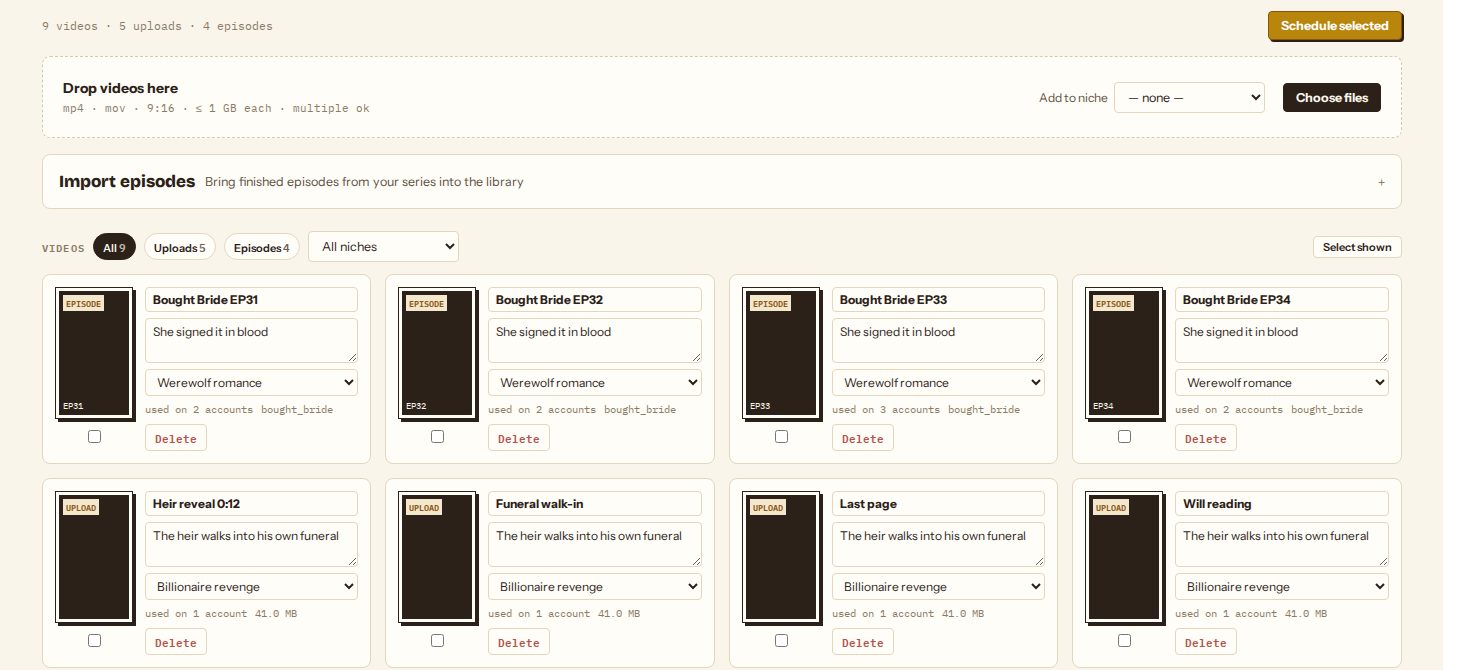
Operations › Content › Library holds everything that can be posted.
- Upload: drop vertical (9:16) MP4 or MOV files, up to 1 GB each, several at a time. Choose Add to niche first to file them under a niche.
- Import episodes: pick one of your series and tick finished episodes. Episodes without a finished master are marked and can't be imported yet.
- Clips you make in Operations › Content › Clips arrive here with Send to Library, cover included.
Each card has a title and a hook, the line that fills {hook} in the niche's caption template, so write it the way the post should open. The card also shows its niche and used on N accounts. Filter by uploads, episodes or niche; tick cards and choose Schedule selected, or use Schedule posts from any page.
2. Schedule posts
The scheduler has four steps. Nothing posts until you confirm in step 4.
- Pick content: the videos to post.
- Pick accounts: tick accounts one by one, or Select niche / Select group to take a whole niche or account group.
- Plan: Dawnwood lays the posts out and shows the week, one row per account.
- Review & consent: check the summary, give TikTok's settings, and schedule.
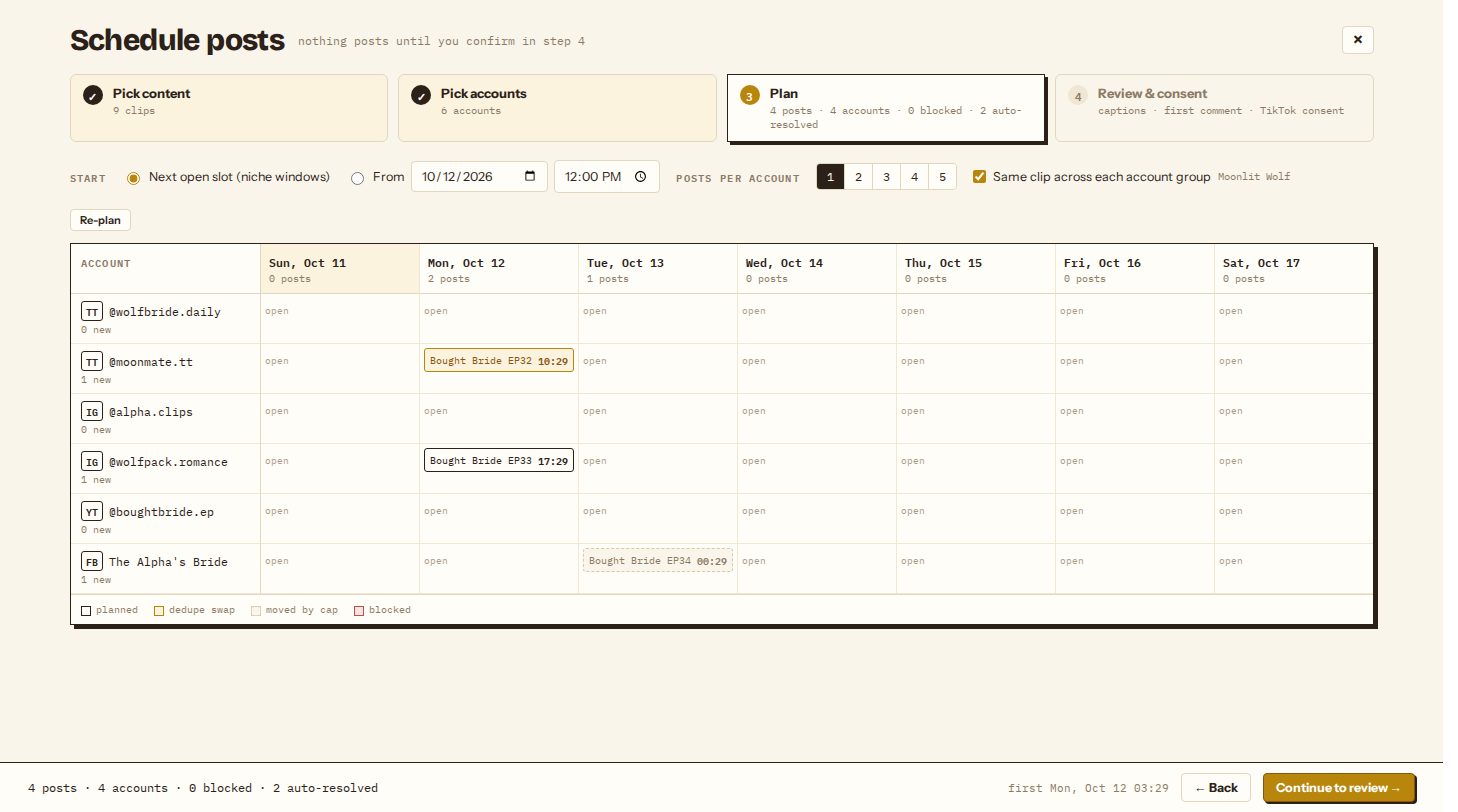
In Plan you choose when to start (Next open slot, using each niche's posting windows, or From a date and time) and Posts per account (1 to 5). Same clip across each account group makes every member of a selected group post the same video at the same time. Each post in the grid has a state:
| State | Meaning |
|---|---|
| Planned | Goes out at the time shown |
| Dedupe swap | The chosen video is already on another account on the same platform within the niche's duplicate window, so a different video from the same niche was used |
| Moved by cap | The account would exceed its daily cap, so the post moved to the next free window |
| Blocked | Can't be scheduled; the reason is shown, for example the account is paused, retired or needs reconnecting, the video is already on this account, or the time is in the past |
Change the selection and click Re-plan as often as you like.
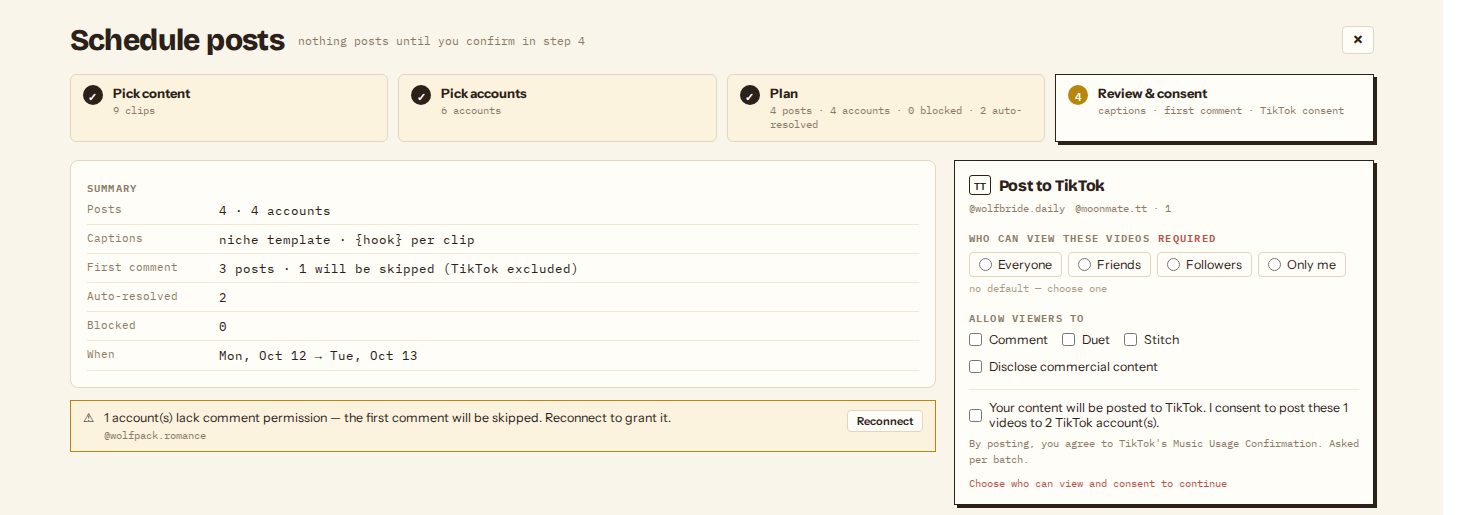
Review & consent summarises the batch: number of posts and accounts, captions (from each niche's template with each video's hook), how many first comments will post and how many will be skipped for missing permission, how many posts were auto-resolved, and the date range. Warnings appear here too, for example an Instagram token that expires before a scheduled post.
If the batch includes TikTok, TikTok requires a few answers for every batch: who can view the videos (there is no default), whether viewers may comment, duet and stitch, whether the content is commercial (your brand or branded content; branded content can't be private), and a consent checkbox. Then click Schedule N posts. If some rows are blocked, either fix them or use Skip N blocked — schedule the rest.
A batch can hold up to 500 posts, and a workspace can post up to 300 times a day across all accounts.
3. Watch the Queue
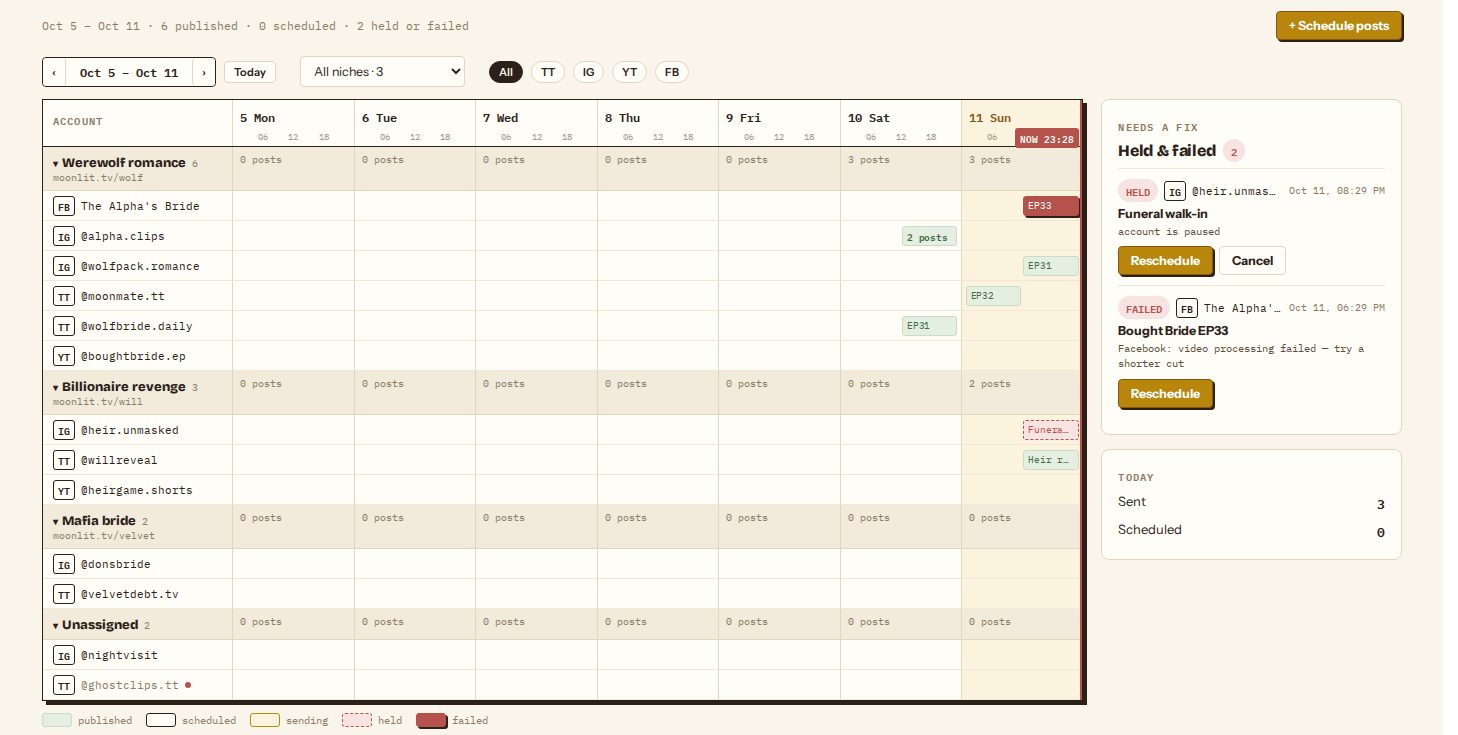
Operations › Publish › Queue shows a week at a time, one row per account grouped by niche, each day split into morning and afternoon. Filter by niche or platform, and move between weeks with the arrows or Today. Colours mark published, scheduled, sending, held and failed posts.
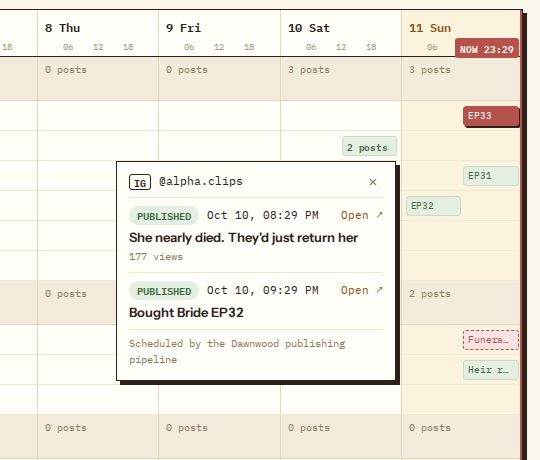
Click a slot to see its posts. Published posts have Open ↗ with their views; scheduled posts have Cancel; held or failed posts have Reschedule, which reopens the scheduler with that video and account. The Held & failed panel on the right lists everything that needs a fix; see fixing publishing problems.
Episodes you publish from Production › Episodes appear here too, marked "Scheduled by the Dawnwood publishing pipeline", so the calendar and the daily caps account for them. Cancelling one of those cancels the episode's post; a scheduled YouTube upload is deleted.
Covers
When a video carries a cover (clips sent from Clips do), each platform gets it the way that platform shows covers:
- Instagram: the cover image is uploaded with the Reel.
- Facebook: Facebook shows the first frame, so a 1-second cover opening is added before the video.
- TikTok: TikTok can only use a frame from the video, so the cover is added as a still at the end and set as the cover frame.
- YouTube: the cover is set as the thumbnail. YouTube doesn't always use custom thumbnails on Shorts; if it matters, check the video in YouTube Studio.
A video without a cover posts with each platform's default.
Still stuck? Email support@dawnwood.ai with your account email, the series, the episode and the segment or group — see what to include.