Short answerTell the story in a few lines, approve the story and outline, then read each episode's script and tap to film it. Auto mode writes, casts, builds the sets, films and cuts every episode in between. Writing never costs credits; filming does, and each episode shows its cost before you start it.
What Auto mode is
Auto mode is the way Dawnwood makes a series without the wizard. You decide three things: the story, whether the story is right, and whether each episode's script is right before it is filmed. Everything else runs on its own: the scripts, the cast's looks and voices, the sets, the shots, the cut, the voices and the captions.
New accounts open in Auto mode. The Advanced mode switch in the top bar opens the full studio instead (season bible, the seven-step wizard, storyboards, shot-by-shot renders). Auto mode is available there too; see Auto mode in Advanced at the end of this page.
1. Tell us your story
Open My series and start a new one. Write the story in a few lines; there is a short minimum, and more detail gives a better season. Then choose:
- When it takes place: suggested from your story. Pick another if it is off; the era decides costumes, sets and props. See why the year matters.
- Look: Live-action (looks like a filmed drama) or Comic (anime and webcomic style).
- Title: optional. Tap Suggest a title or leave it and one is suggested once the story is written.
- Dialogue language: English, Chinese, Spanish, Japanese or Korean.
Tap Write my story. This is free. By continuing you confirm the story uses no real person's likeness or name.
2. Approve the story
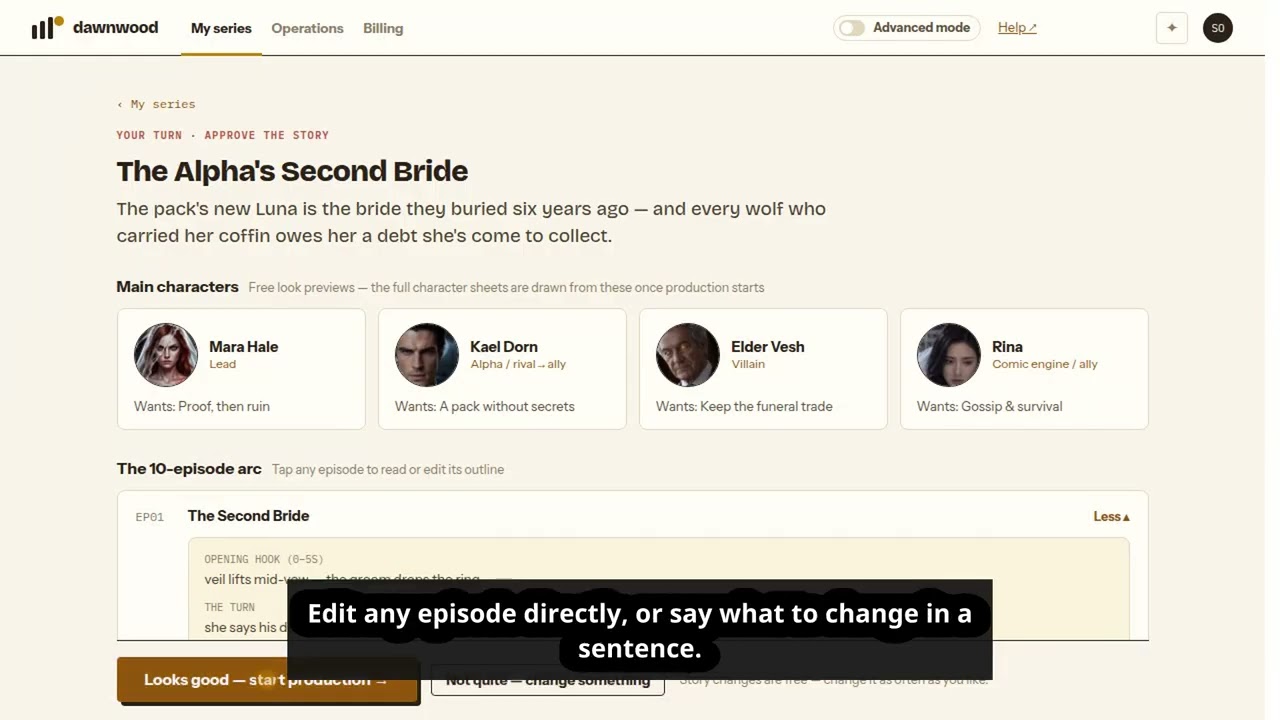
You get the main characters (with what each one wants) and a 10-episode outline. Every episode has an opening hook, a turn and a cliffhanger. Tap any episode to read or edit its outline directly, or tap Not quite — change something and say what to change in a sentence, for example make him warmer, and have them meet by episode 3. Story changes are free; change it as often as you like.
When it reads right, tap Looks good — start production. Before anything starts you see what happens next.
3. Read episode 1, then film it
Auto mode writes the episode scripts (free) and stops on episode 1. Read it. You can edit it yourself (free; saving approves it) or describe a change and let it rewrite.
Tap Script's good — film episode 1. The button shows roughly what filming the episode costs. Only now does Auto mode create the cast's looks and voices and the sets episode 1 needs, then film and cut the episode.
Free accounts get the first two episode scripts. The rest are written automatically after the first purchase of any credit pack or plan.
4. One episode at a time
Every finished episode stops for you. Watch it, read the next episode's script, and tap film episode 2 (then 3, and so on). If you would rather not be asked, tick Film the rest without asking and Auto mode films the remaining episodes in order.
You can close the page at any point. We email you when the scripts are written and each time an episode is ready, with a link straight back to it.
Pause, resume and stops
- Pause: jobs already running finish; nothing new starts and no more credits are used. Tap Resume production when you are ready.
- Out of credits: production stops. Top up, then tap Resume.
- Add a card: after your first free segment, filming asks for a card check with no charge. Add the card, then resume.
- A script changed upstream: if you edit an earlier episode's script, Auto mode asks you to confirm the next episode still follows before filming it.
Fixing a finished episode
Open the episode. The left side plays it; the right side has Script and Publish & feedback. Under Something off in this episode? describe the problem the way you would to an editor, for example at 0:20 her dress changes colour. The assistant tells you what it will redo and roughly how many credits before it starts, and nothing happens until you agree. See describing a problem to the agent.
Editing a script after an episode is filmed does not re-film it on its own; ask the assistant to re-film from the new script.
What it costs
| Step | Credits |
|---|---|
| Writing the story, changing the story | Free |
| Episode scripts, editing them yourself | Free |
| Rewriting a script you already approved, in a sentence | 5 cr |
| Cast looks, voices and sets | Charged as each episode needs them, at the usual art rates |
| Filming an episode | By the second, at the base render rate; the estimate is on the film button |
| Fixes after you watch | Quoted by the assistant before it starts |
Failed jobs are never charged. See what costs credits and what is free.
Auto mode in Advanced
In Advanced mode you pick a production mode for each series, on the first step of the wizard, and you can change it later from the wizard:
- Automatic: brief to finished episodes. Each stage is approved automatically and episodes are generated at the usual credit rates. Clear quality-check failures get up to three retries, then the highest-scoring candidate is kept. You get an email when it is ready; publishing stays separate.
- Manual: review each stage. The wizard waits for you at every step.
You can switch between them mid-season; jobs already submitted finish first. Advanced Automatic does not stop between episodes, so use it when you are happy to let a whole season run.
Still stuck? Email support@dawnwood.ai with your account email, the series, the episode and the segment or group — see what to include.