Short answerSign up, describe the series, approve the bible and scripts, confirm the art estimate, then render one segment of episode one and watch it before rendering more.
1. Create your account
Sign up in the console and verify your email. Your signup grant is 500 credits, valid for 30 days. A paid subscription is not required to render while you have enough credits.
2. Describe your series
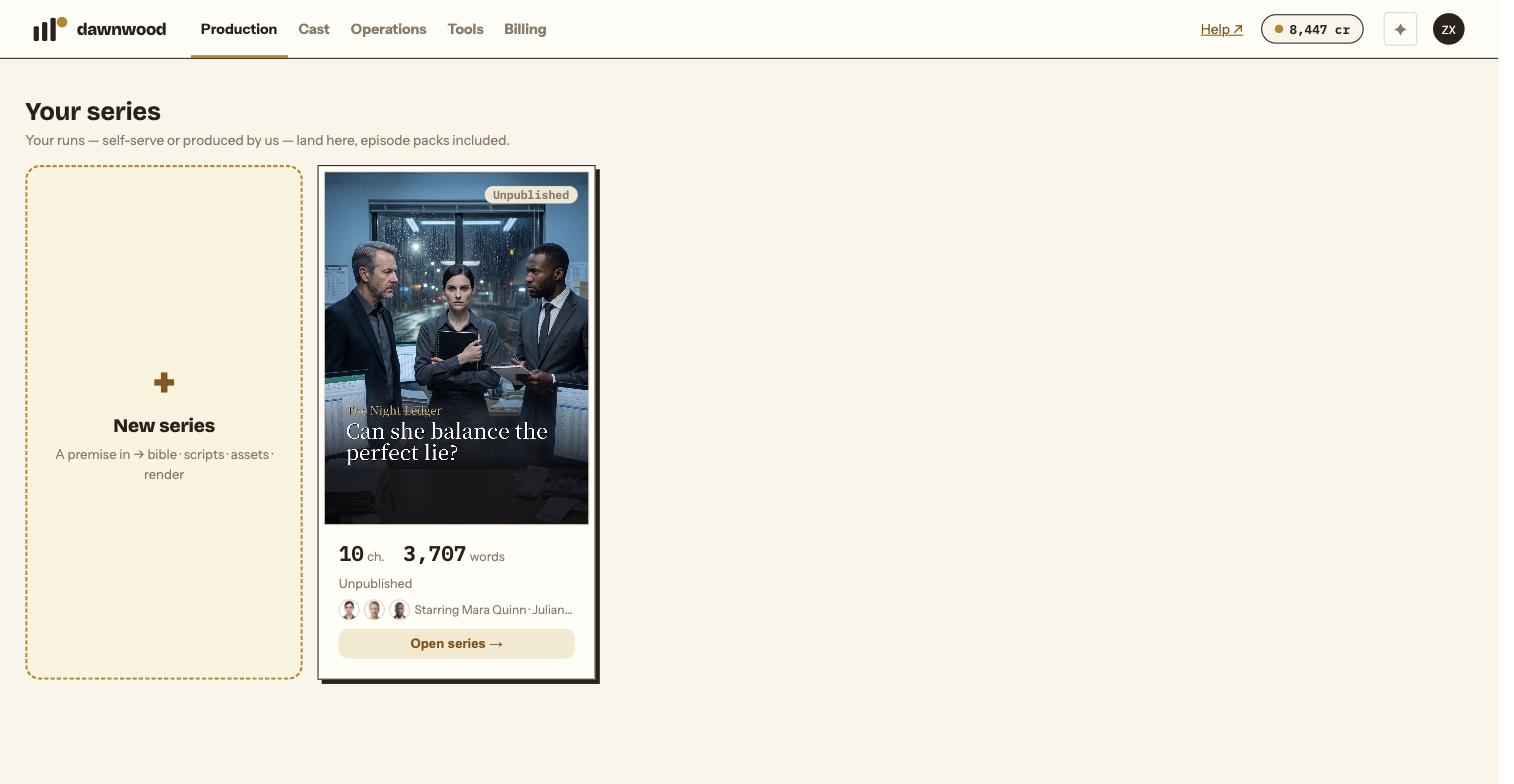
Choose New run. Write the premise, pick the era and the platform, set the episode count. Keep your first series small: a few speaking characters and locations make it much easier to reach a first result within the grant. See what to prepare and why the year matters.
3. Review the bible and scripts
The wizard drafts your season bible, then the episode scripts one by one. Read them, give feedback or edit directly, and approve. The bible holds the characters and story rules that guide everything later, so fix it here rather than in the render. See feedback vs. editing the bible.
4. Confirm the world pack and the art estimate
Check the character, scene and prop cards, then the art estimate. Confirm the credits shown before generation starts. The first pass focuses on the characters episode one needs; scenes and props fill in as episodes render. Only upload a real person's likeness or voice with written consent, and read the Acceptable Use Policy.
5. Render one segment
Open episode one, look at its storyboard and start the render. Check the estimate and your balance first. You may see a queue while another group is rendering; you can close the page and come back.
6. Watch, review and continue
Watch the result before rendering more. Keep usable takes and describe specific changes when you ask for a fix. Further takes use credits. Once the episode is ready, sign it off, then download or publish through a connected channel.
If you get stuck
A low balance needs a top-up or a smaller operation. A failed asset or voice shows in generation progress; if retry does not clear it, contact support. Review credit costs before continuing.
Still stuck? Email support@dawnwood.ai with your account email, the series, the episode and the segment or group — see what to include.