Short answerConnect channels under your avatar menu → Connected accounts. Publish from Production › Episodes once an episode is signed off and its master is ready, choosing Now, the next daily slot or a time. Failed posts are fixed by publishing the episode again.
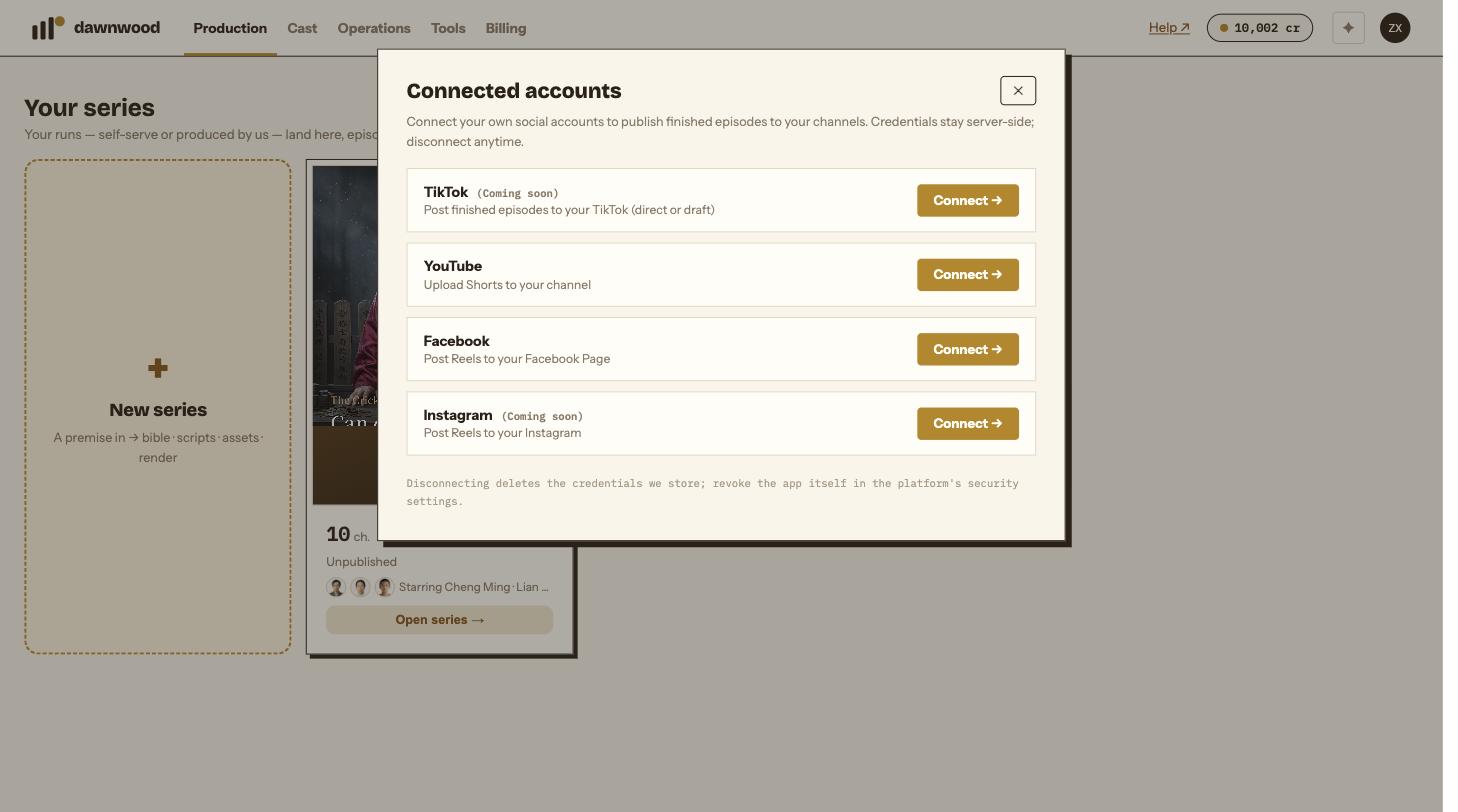
Connect your channels
Open the avatar menu (top right) and choose Connected accounts. Four platforms are listed:
| Platform | What gets posted |
|---|---|
| TikTok | Finished episodes, direct or as a draft to finish in the app |
| YouTube | Shorts to your channel |
| Reels to your Facebook Page | |
| Reels to your Instagram |
Click Connect → and keep every permission box ticked; unticking one produces "Some permissions were unchecked, reconnect and keep all boxes ticked". Credentials stay on our servers and Disconnect deletes them; revoke the app itself in the platform's own security settings if you want to be thorough. A Facebook account with no Page shows (no Page found).
You can connect several accounts on YouTube and TikTok with + Add account; mark one as ★ default. Platforms marked Coming soon are still under platform review and may not accept posts yet.
Choose where a series goes by default
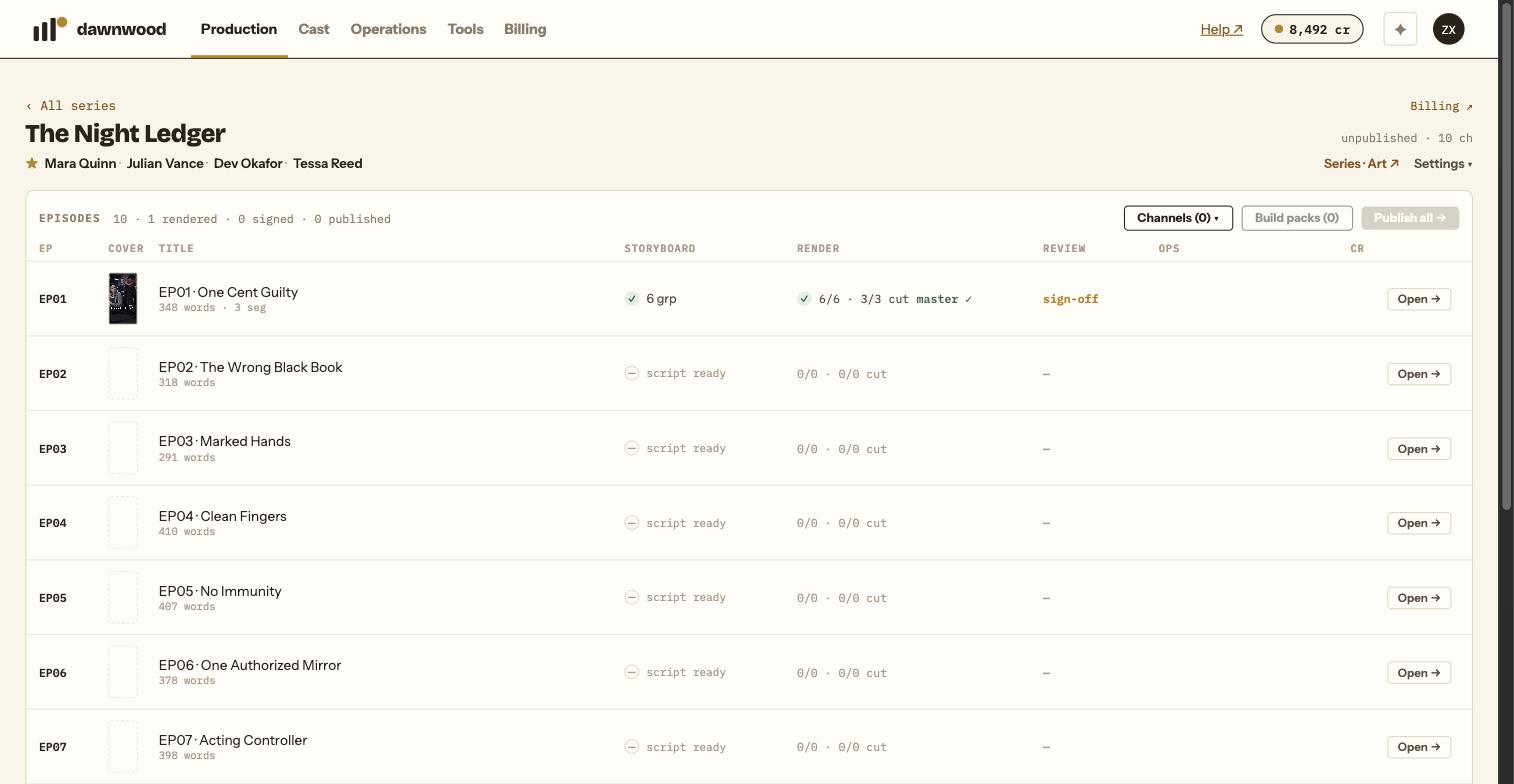
On the series overview, Channels (N) ▾ lists your connected accounts. Ticked accounts are the default targets for every episode of that series; a single episode can still override them at publish time.
Publish an episode
From Production › Episodes, an episode can be published when two things are true:
- It is signed off. Machine QC passing is not enough; see what sign-off means.
- Its episode master is ready.
The Publish episode form shows the final cut on the left and, on the right:
- Publish to: the accounts, prefilled from the series channels.
- Hook line: the caption for YouTube, Facebook and Instagram, prefilled from the cover hook. Customize title & description opens the full fields. TikTok has its own caption of up to 2,200 characters.
- When to publish: Now, Next slot (each account's next free daily slot at 7:00 PM ET), or Pick a time. YouTube uploads privately and flips to public at the scheduled time; the other platforms are posted by us at the due time.
- TikTok settings: who can watch, comment and duet permissions, commercial-content labels, and a consent checkbox confirming you reviewed the video and settings. TikTok also requires that you preview the exact current master before posting.
Click Publish episode → or Schedule episode →.
Publish all
Publish all → on the series overview schedules every signed-off, unpublished episode in order, one per account per daily slot, using each episode's cover hook as the caption. TikTok is excluded from Publish all; publish TikTok episodes one by one so you can confirm each caption and its settings. If some episodes were already published, you choose between skipping them and rebuilding and republishing everything; republishing deletes old YouTube uploads, while old TikTok posts must be removed in the TikTok app.
Watching the queue
Operations › Channels lists every post with its status: queued, scheduled, published or failed. TikTok posts show processing for a few minutes and refresh on their own; a TikTok draft says finish in the TikTok app.
When a post fails
The row shows ⚠ with the platform's reason. There is no separate retry button: fix the cause (usually a disconnected account or a platform-side limit such as a video duration cap), then publish the episode again. A failed slot stays occupied in the daily schedule so it is not forgotten.
Performance
Operations › Performance shows, per post, views, views in the first 48 hours, likes and comments, with totals across the series.
Still stuck? Email support@dawnwood.ai with your account email, the series, the episode and the segment or group — see what to include.