Short answerOpen a clip job and click a clip to open its drawer. Keep or drop it, rename it, move its start or end one line at a time, switch between pop, plain and no captions, and pick a cover. Changing the cut or the captions re-renders that clip for free. Titles, Kept and covers change instantly.
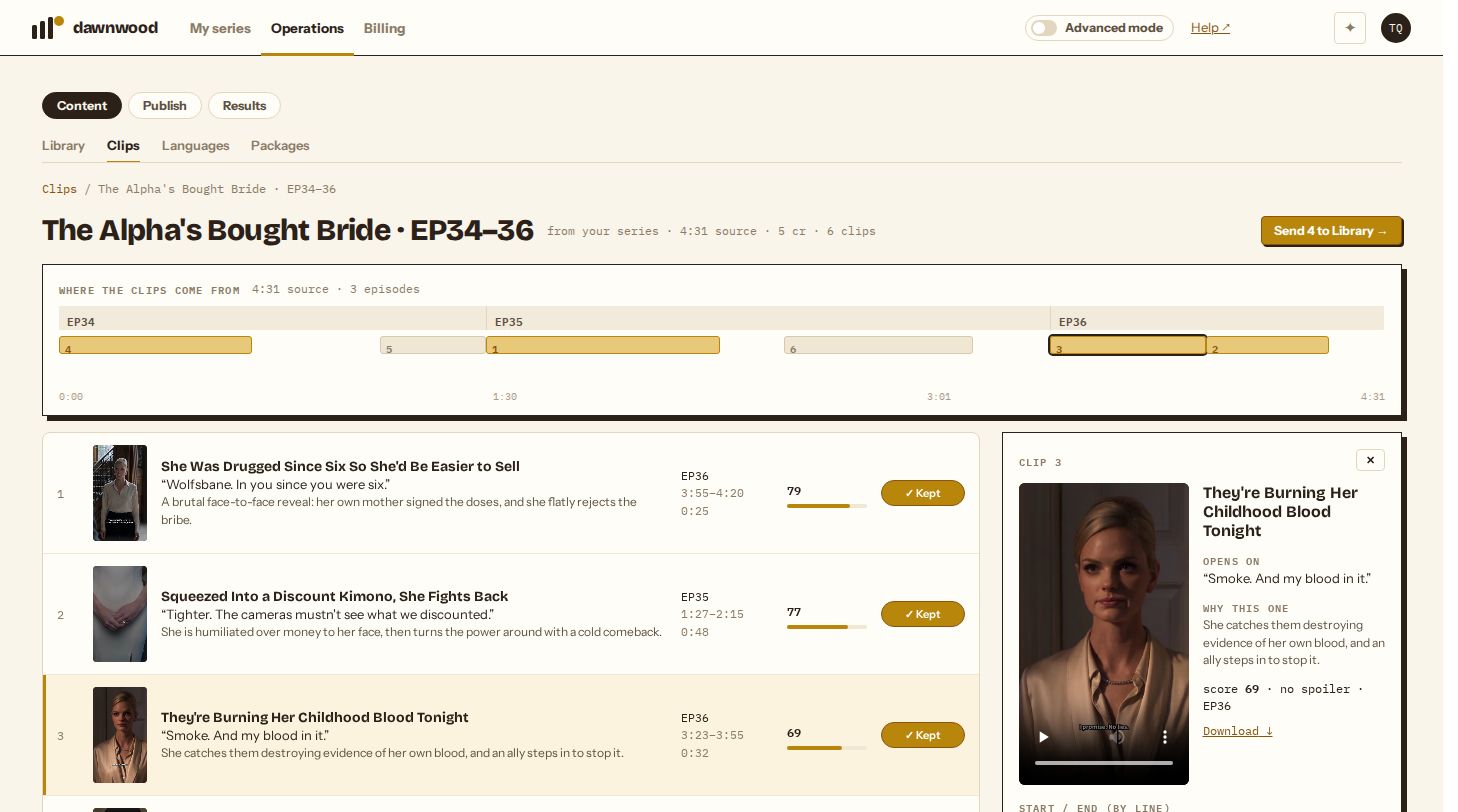
Find the ones worth posting
The list is sorted by score, highest first. The timeline above it shows where each clip sits in the source, so you can see at a glance whether the picks cluster in one episode. Clips marked spoiler give away an ending and are never kept by default; post them only if you mean to.
Click Keep on a row to add it to the set you will post, or ✓ Kept to drop it. Only kept clips are sent on.
The clip drawer
Click a clip to open it on the right. The drawer shows:
- the clip itself, with a Download ↓ link for the MP4
- Opens on: the first spoken line
- Why this one: the reviewer's reason
- the score, whether it is a spoiler, and which episode it comes from
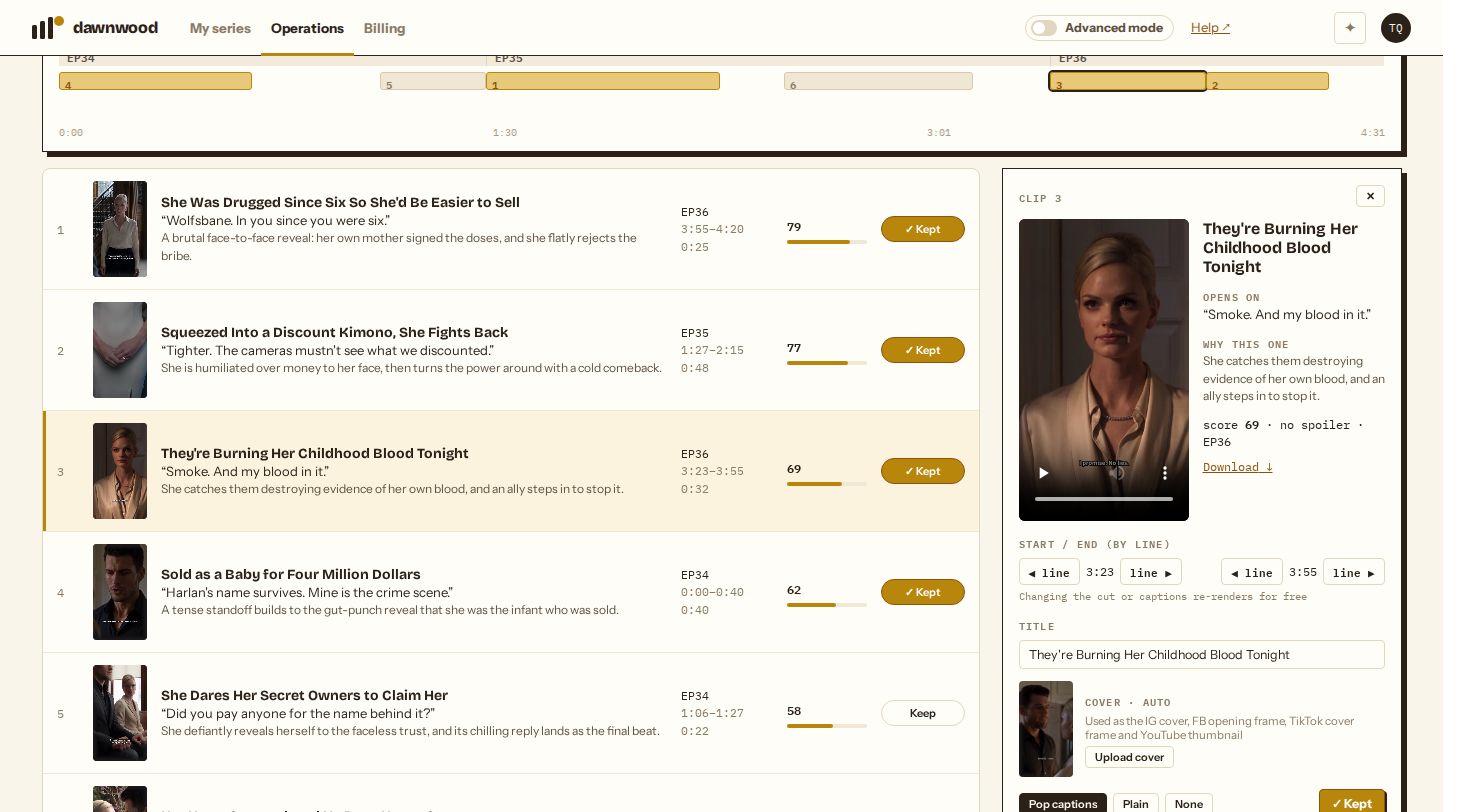
Move the start or end
Start / end (by line) has two pairs of buttons. ◀ line and line ▶ move the start or the end one spoken line earlier or later. The cut still snaps to the nearest shot change, with a short pause after the last line so a reaction lands. A clip can be at most 2 minutes long.
Captions
Pop captions show one or two words at a time in large type, timed to the speech. Plain shows whole lines. None leaves the picture clean, for example when you will add captions in another app. The style is per clip.
Title
The title is what the clip is called in Library and the default post caption. Edit it in the drawer; it saves when you leave the field.
Cover
Every clip gets an automatic cover: a frame from the clean source, without the burned captions. Upload cover replaces it with your own JPG or PNG; Use auto cover goes back. When the clip is posted, this one image is used everywhere: as the Instagram cover, the Facebook opening frame, the TikTok cover frame and the YouTube thumbnail.
What re-renders and what doesn't
| Change | Re-render | Cost |
|---|---|---|
| Keep / drop | No | Free |
| Title | No | Free |
| Cover | No | Free |
| Start or end | Yes, that clip only | Free |
| Caption style | Yes, that clip only | Free |
A re-rendering clip shows Re-rendering… in its row; the rest of the job stays usable. Edits are possible once the whole job has finished.
Still stuck? Email support@dawnwood.ai with your account email, the series, the episode and the segment or group — see what to include.