Short answerMark the clips you want as Kept, then click Send N to Library at the top of the job. They land in Operations › Content › Library with their title, opening line, cover and end card, ready to schedule across your accounts from Publish. Sending again only adds clips that aren't there yet. Without publishing enabled, download each clip from its drawer and post it yourself.
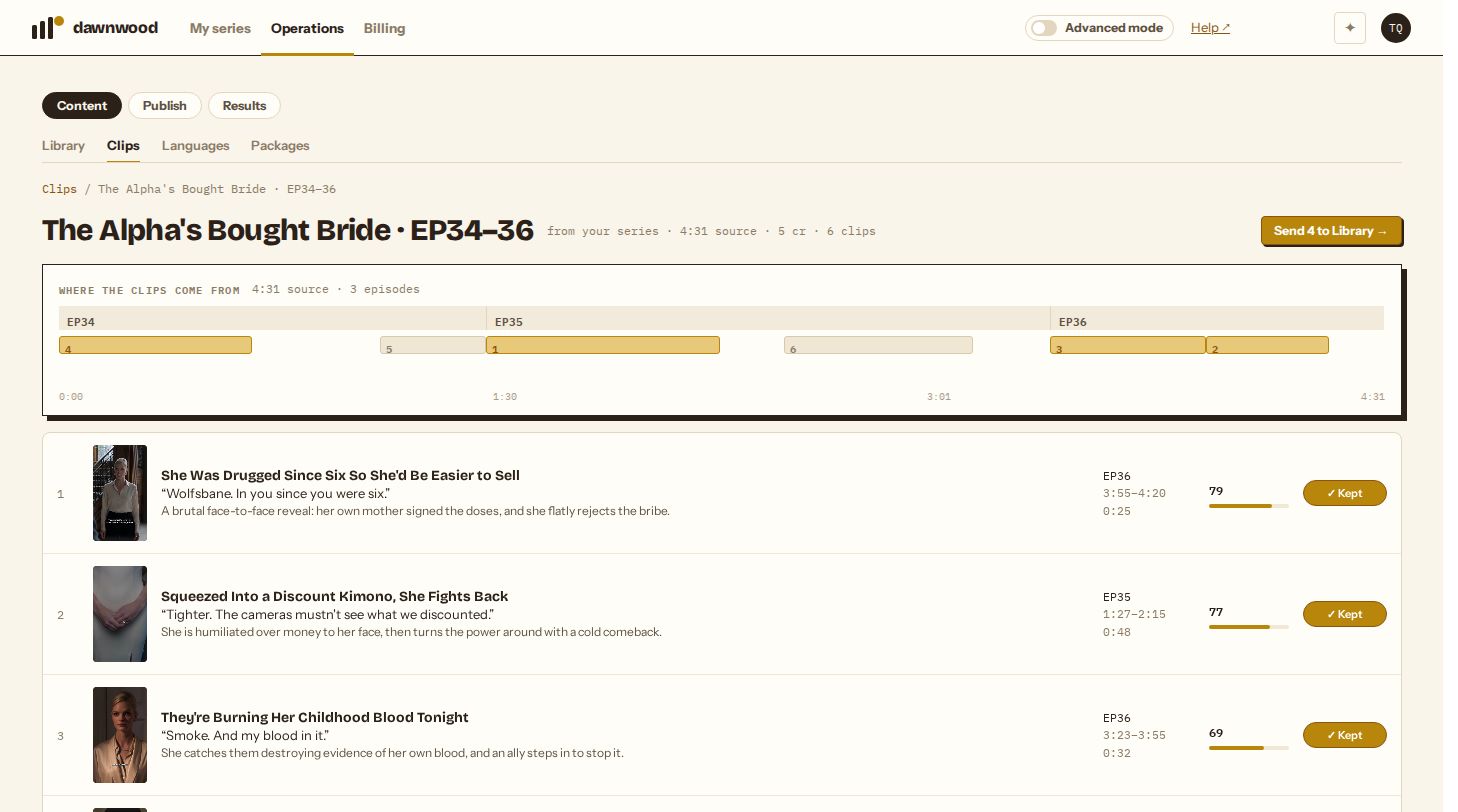
Send to Library
- Keep the clips you want (the button on each row reads ✓ Kept).
- Click Send N to Library → at the top of the job. N is the number of kept, finished clips.
- A green line confirms how many were sent. The job row on the Clips home now says in Library.
Each clip arrives in Content › Library with:
- its title (the default caption) and its opening line (used as the hook)
- its cover, used for every platform's cover or thumbnail
- the niche you picked for the end-card link, if any, so it is scheduled to that niche's accounts
- a note that the last 3 seconds are the end card, so platforms that take a cover frame never pick it
Sending the same job again only adds clips you have kept since; clips already in Library are not added twice.
Schedule from Publish
In Content › Library, tick the clips and click Schedule selected to place them on your accounts; the posts then show in Publish › Queue. Each platform gets its own version when the post goes out: the Instagram cover is uploaded separately, Facebook gets a 1-second cover opening, TikTok gets a cover frame at the end, YouTube gets the thumbnail.
The Send button appears once publishing is enabled for your workspace.
Download instead
Open a clip and use Download ↓ in its drawer to save the MP4 (1080×1920, captions and end card burned in). Post it from your phone or another scheduler. Download links stay valid for about an hour; reopen the job for fresh ones.
Posting rules worth knowing
- Post the strongest clip first and space them out. A new account posting many near-identical clips in a day tends to be shown to almost no one.
- A link on the end card only helps where the platform lets viewers act on it. On TikTok, put the link in your bio as well.
- Spoiler clips are not kept by default for a reason: a reveal used as a hook can cost you the viewers who would have watched the episode.
Still stuck? Email support@dawnwood.ai with your account email, the series, the episode and the segment or group — see what to include.