In shortStart from what the picture shows and the track lacks. Keep every sound that is already there, add effects only for actions a viewer can see or should hear just off screen, lay one ambience bed per scene and a music bed that drops under the dialogue. Keep effects out of the lines unless they are clear impacts, make low hits audible on a phone, and check each effect where it sits in the cut instead of trusting a list.
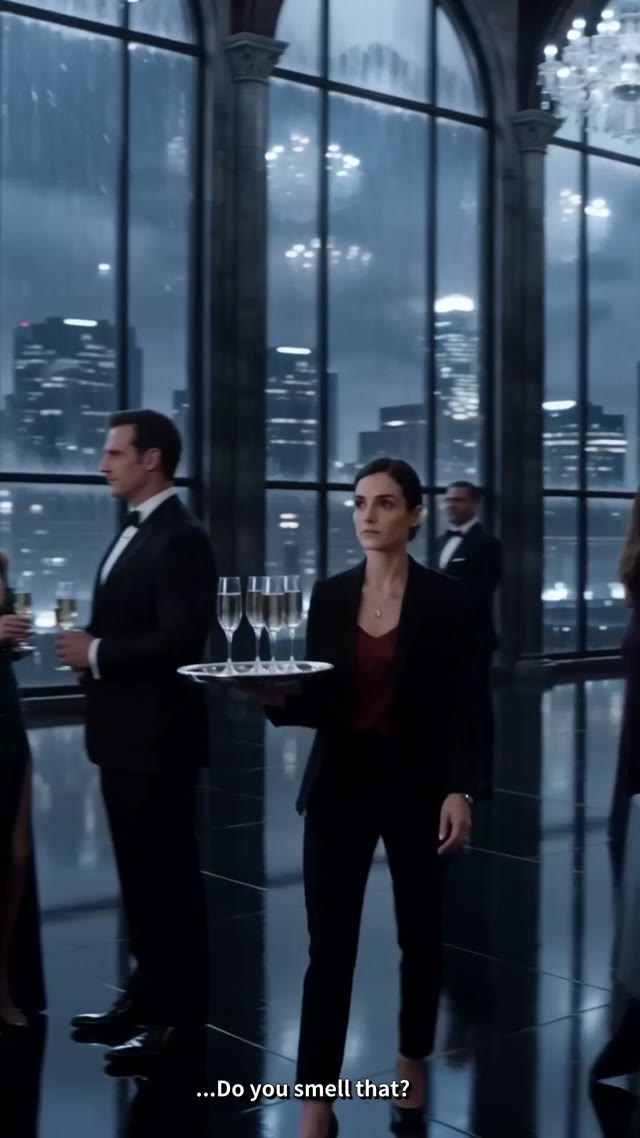
Why silent action costs you viewers
A slap with no slap reads as cheap. So does a door that closes without a sound, a glass that breaks in silence, or a wolf that bares its teeth and makes no noise. Short drama is watched on phones, often in one sitting, and viewers forgive a lot of things, but a scene that looks loud and sounds empty breaks the spell fast. Most AI-made and fast-cut episodes have exactly this gap: clean dialogue, maybe music, and nothing in between.
Step 1: keep what is already there
Before adding anything, listen. If the source already has the door slam or the footsteps, a second copy on top makes the moment sound doubled and fake. A good pass compares the picture with the existing track and only fills holes.
Step 2: add effects for what the viewer can see
Work through the actions that carry the scene:
- impacts: hits, slaps, a fist on a table,
- doors, glass, and objects that fall or break,
- footsteps when the surface matters: heels on marble, boots on gravel, bare feet on wood,
- weapons, and creature sounds such as growls and howls,
- magic or power bursts in fantasy and werewolf drama,
- sounds from just off screen, such as a door shaking before someone forces it.
Skip small incidental movement. Cloth rustle and every hand gesture add noise without adding drama.
Step 3: one ambience bed per scene
Each scene needs a room under it: rain on a roof, a night forest, a hospital corridor. A looping bed per clip glues the cuts together, so a jump between angles does not sound like a jump between places.
Step 4: music under the lines, not over them
Pick a music bed that fits the scene and duck it whenever someone speaks. Inside dialogue, only clear impacts should play; anything softer competes with the words. If the episode has a dubbed or foreign-language version, keep effects out of those dialogue windows entirely.
If your episode is stitched from many AI clips, check the music before you add anything. Seedance, Kling and Veo give every clip its own music, so a cut of eight clips plays eight songs that stop and restart at every edit. Strip that music first and score the whole timeline once; the steps are in why the music cuts out between AI video clips.
Step 5: make it work on a phone
Phone speakers drop most of the low end, so a punch or a slam that lives in the bass can vanish. Give low effects a mid and high layer so they still land at the volume people actually watch at.
Step 6: check each sound in the cut
A list of effects tells you nothing. Watch each one where it sits: is it on the frame of contact, is it too loud, is it the right kind of hit? Keep a few alternatives ready for each effect so fixing one is a swap, not a search. When you trim or move a shot later, the effects should move with it.
Doing it automatically
Dawnwood's Auto Sound runs these steps for you. Upload a video on the Auto Sound card in Tools, or press Auto sound in the editor. Choose Subtle, Standard or Punchy, and switch off any layer you do not need. Every effect lands on the editor's Sound track with the reason it was added, three alternatives, gain, a one-frame nudge, lock, and a "don't want this" button that keeps it out on the next run. It costs 5 credits per minute of new footage, and re-running the same footage at another intensity is free. On series made in Dawnwood, the same pass runs on every new episode by itself.
When the sound is right, you don't have to export and re-upload. Finish & post on the same page adds captions (pop captions when there is dialogue), keeps your original frame unless you choose 9:16, suggests four cover frames and drafts a post line with hashtags, then posts the video to your own TikTok, Instagram or Facebook. That packaging is included in the price, and your first 3 videos post publicly without a card. For YouTube, download the packaged video and upload it yourself. More on the Auto Sound page.
Already have an episode? Give it a full sound pass in one upload
Dawnwood's Auto Sound takes a video stitched from AI clips, strips the music baked into each clip while keeping the dialogue, lays one continuous score across the whole timeline that ducks under every line, and adds the missing effects and an ambience bed per scene. Upload a video and get it back with sound in one pass; a failed run is refunded.
Open Auto SoundOr start a series →