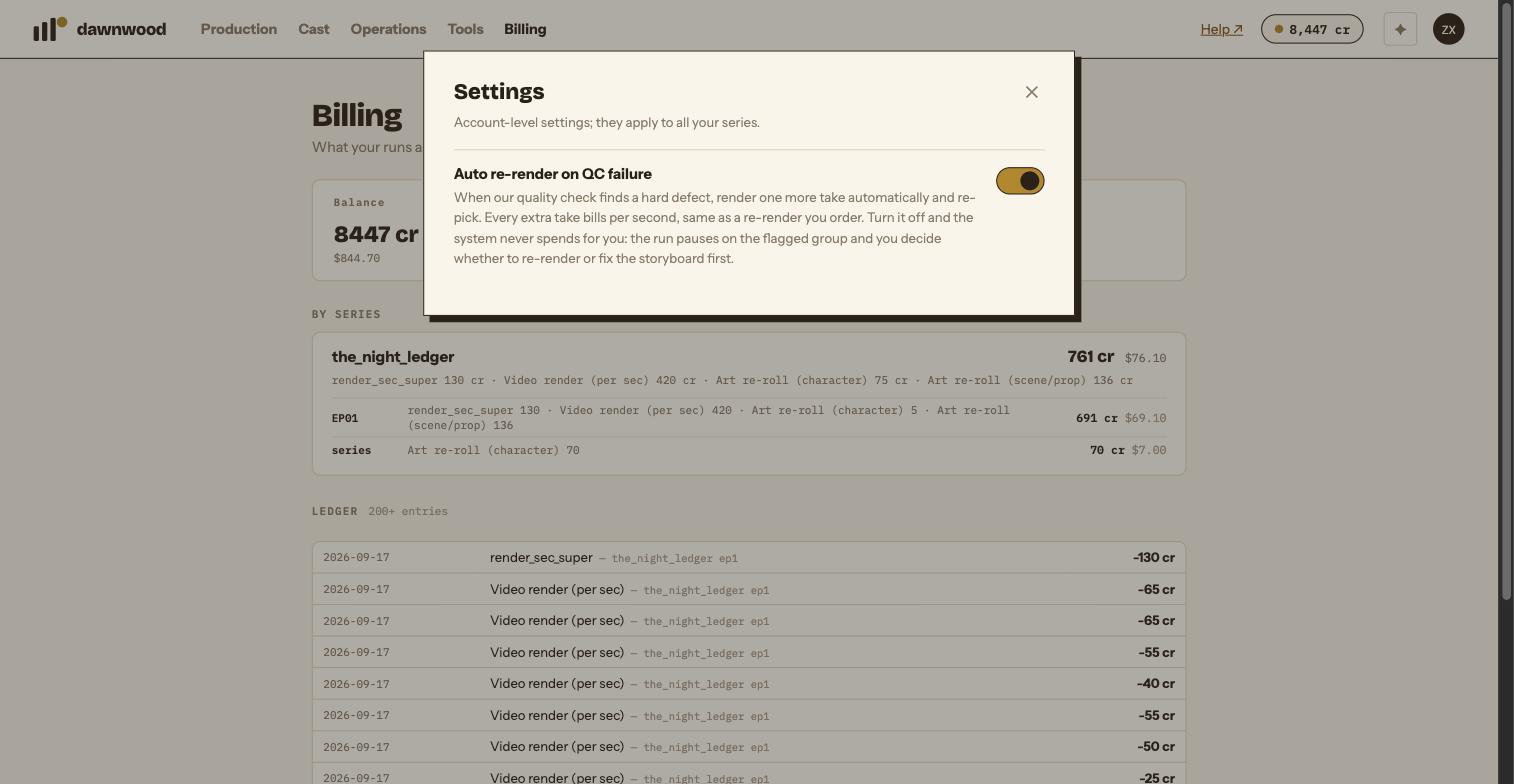
Short answerQC screens every take for hard defects, then reviews each stitched segment and the whole episode. With Auto re-render on QC failure on (the default), one extra take is rendered for a hard defect and billed like any take. Turn it off in Settings and the run pauses on the flagged group for you to decide.
What is checked
- Every take, before it can be picked. Deterministic checks first: background collapse, effective frame rate (stutter), voice drift. Then a visual judge looks for failure modes: anatomy, a face swapping or ageing within one character, clones, frozen frames, burned text, wrong counts. The group card shows a shield with the hits; red means a critical hit that excludes that take from automatic picking. A take that was best on score but dirty is demoted and a cleaner sibling is picked instead.
- Each stitched segment. A reviewer watches the cut and returns pass or concern with a score, a severity and a one-line summary in English, plus the worst frame. Hard defects are things like melted limbs, tearing, frozen frames or a picture that contradicts the dialogue.
- The episode, advisory only: cross-shot character consistency, and a macro review scored on visual rhythm, composition variety, narrative arc and style unity.
Auto re-render on QC failure
Settings (avatar menu) has one switch: Auto re-render on QC failure, on by default. When the quality check finds a hard defect it renders one more take automatically and re-picks. Every extra take bills per second, the same as a re-render you order.
Only serious cases trigger it: a hard defect with a low score, on the one group the worst frame maps to, at most once per segment. Self-serve runs are never escalated to the 10 cr/s engine automatically. A failure mode that hits twice in a row is treated as systematic and stops burning takes.
With the switch off, the system never spends for you. The run pauses on the flagged group and the Render bar shows QC found hard defects; auto re-render is off, your call, listing the group and the defects, with Re-render · ≈ N cr and Fix the storyboard first. The blocked reason says the same and ends with "press Continue".
Judging what QC flagged
The Review page marks segments with a red QC chip. Next to the fix box you see the summary and the frame. If the effect is intended, click intended · ignore: the call is added to this series' whitelist and the same thing stays silent in later checks. The sign-off strip counts what is left: 2 QC items still unjudged. You can sign off anyway; the count is there so you look, not to block you. ↻ re-run QC in the details expander re-checks after you have changed something.
What QC cannot see
Story logic, acting quality and whether a scene works are yours to judge. QC finds the picture breaking, not the drama failing.
Still stuck? Email support@dawnwood.ai with your account email, the series, the episode and the segment or group — see what to include.